
How to Convert an SVG to an Icon Set in Seconds
If you’ve ever designed a logo or downloaded an SVG icon, you’ve probably run into the same problem: you don’t just need one icon. You need the same icon in multiple sizes.
Maybe you’re creating a Chrome extension. Maybe you need website favicons. Or perhaps you’re building an Android app. Whatever the case, manually exporting every size is repetitive, slow, and honestly… pretty boring.
That’s exactly why we added Icon Set Generator to SVGtoAny.com.
In this guide, I’ll show you how to turn a single SVG into a complete icon set in less than a minute.
Why Generate an Icon Set?
Most platforms don’t accept a single SVG file.
Instead, they expect several PNG images with specific dimensions.
For example:
- Chrome Extensions require 16×16, 32×32, 48×48, and 128×128 icons.
- Websites need favicon sizes like 16×16, 32×32, and 48×48.
- Android launchers use multiple resolutions to support different screen densities.
Creating these one by one isn’t difficult. It’s just unnecessary work.
Step 1: Upload Your SVG
Start by uploading your SVG file to SVGtoAny.com.
Once the file is processed, you’ll see a list of export options.
As shown below, simply click Icon Set.
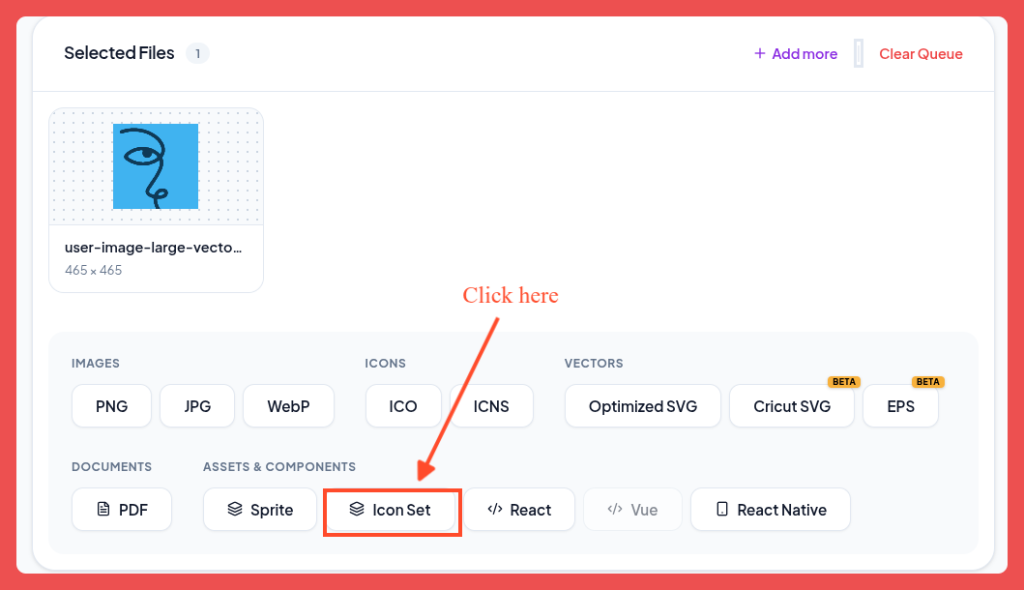
You’ll notice there are many other export formats available as well, including PNG, JPG, WebP, PDF, React components, Sprite Sheets, Cricut SVG, and more.
But today we’re focusing on generating icon packs.
Step 2: Choose the Icon Set You Need
After clicking Icon Set, a dialog appears with several ready-made presets.
Currently you can generate icon sets for:
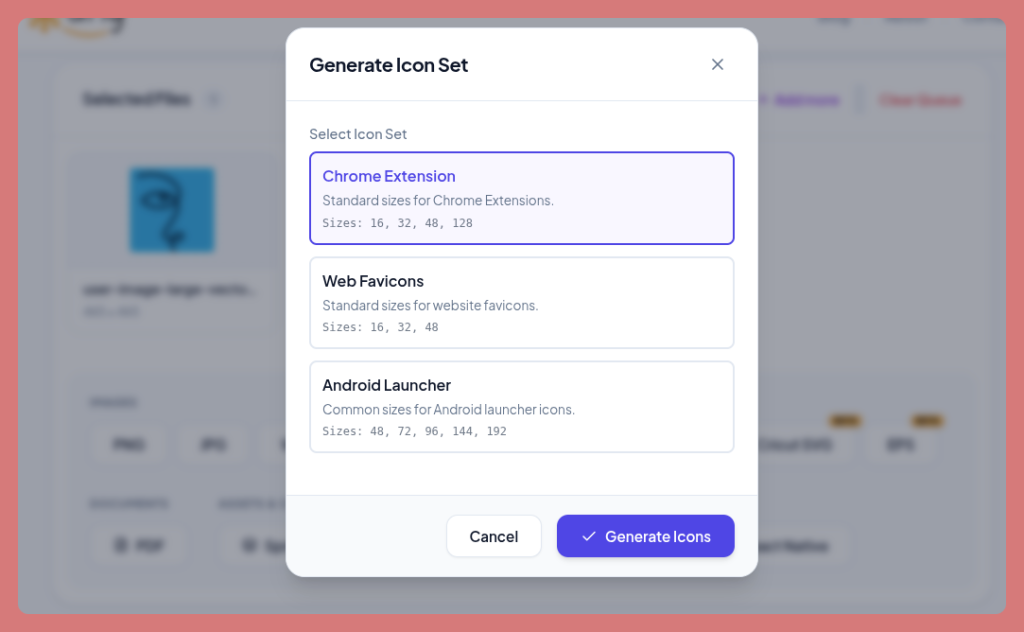
Chrome Extension
Perfect if you’re publishing an extension to the Chrome Web Store.
The generated package includes:
- 16×16
- 32×32
- 48×48
- 128×128
No resizing. No guessing.
Web Favicons
Need icons for your website?
Choose the Web Favicons preset and SVGtoAny will generate the common favicon sizes automatically.
Included sizes:
- 16×16
- 32×32
- 48×48
Android Launcher
Building an Android app?
This preset creates launcher icons in the standard Android dimensions:
- 48×48
- 72×72
- 96×96
- 144×144
- 192×192
Everything is generated from your original SVG, so every icon stays crisp and consistent.
Step 3: Click “Generate Icons”
That’s it.
Click Generate Icons, and SVGtoAny creates every required size automatically.
Instead of exporting five or six separate files yourself, you get a complete icon package ready to use.
Simple.
Why Start with SVG?
SVG files are vector graphics.
That means they can scale to virtually any size without becoming blurry or pixelated.
When SVGtoAny creates your icon set, every PNG is rendered directly from the original vector artwork, giving you clean, sharp results whether the icon is 16 pixels or 192 pixels wide.
Tips for Better Looking Icons
A few small adjustments can make a big difference:
- Use simple shapes for small icons.
- Avoid extremely thin lines that disappear at 16×16.
- Leave a little padding around the artwork.
- Test your icon on both light and dark backgrounds.
- Preview the smallest size before publishing.
Remember, if an icon looks good at 16×16, it’ll almost always look great everywhere else.
Who Is This Feature For?
The Icon Set Generator is useful for:
- Web developers
- Chrome extension developers
- Android developers
- UI and UX designers
- Startup founders
- Open-source project maintainers
- Anyone who wants to avoid exporting icons manually
Whether you’re building your first project or shipping software every day, it saves time.
Final Thoughts
Generating icon sets shouldn’t feel like a chore.
Upload your SVG once, choose the platform you need, and let SVGtoAny create every required size for you.
No design software.
No repetitive exporting.
Just a complete icon set that’s ready to use.
If you regularly work with SVG files, it’s one of those small tools that quickly becomes part of your workflow.