
An Apple Icon Image (.icns) file is a multi-resolution container used across macOS to render application icons in the Finder, Dock, Spotlight, and Launchpad. Unlike formats that store a single raster grid, an ICNS file bundles multiple mipmaps from 16×16 up to 1024×1024 pixels. This keeps icons sharp whether shown as small list entries or full-sized Retina previews.
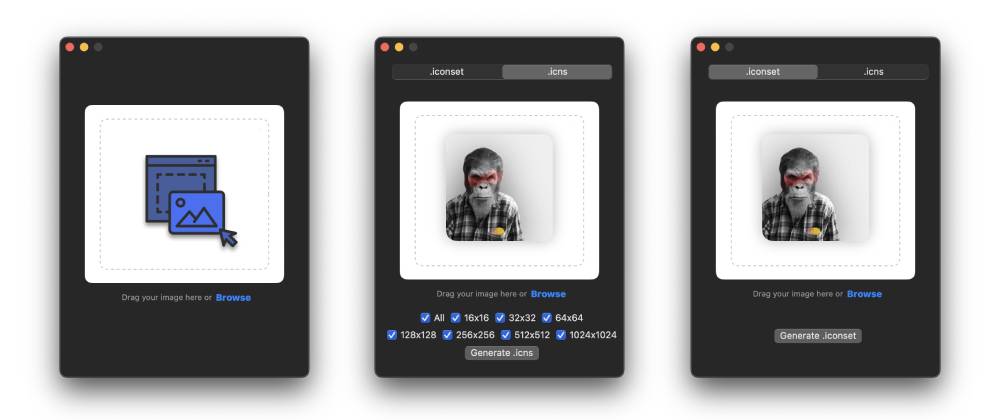
Starting with a Scalable Vector Graphic (SVG) provides the cleanest foundation for generating an ICNS file. Vector paths scale mathematically, avoiding the interpolation blur and artifacts that occur when upscaling raster images. Turning an SVG into a macOS icon requires specific dimensions, aspect ratios, and format conversions. Depending on your platform and build workflow, several practical methods exist to convert SVG assets into ICNS files.
macOS Icon Specifications
Apple expects macOS app icons to follow structural rules introduced in macOS Big Sur. The base artwork sits on a square 1024×1024 canvas with a transparent background. The visible shape fits inside an 824×824 pixel bounding box, leaving an outer margin for drop shadows and visual alignment.

An ICNS container requires ten distinct raster dimensions corresponding to five standard sizes and their respective @2x Retina pairs:
- 16×16 (standard) and 32×32 (@2x)
- 32×32 (standard) and 64×64 (@2x)
- 128×128 (standard) and 256×256 (@2x)
- 256×256 (standard) and 512×512 (@2x)
- 512×512 (standard) and 1024×1024 (@2x)
Method 1: In-Browser Conversion via SvgToAny
For designers and developers who want immediate exports without terminal commands or software installs, browser-based conversion offers the most direct route. SvgToAny handles client-side vector rasterization and packages the resulting mipmaps into a valid ICNS bundle directly in your browser.
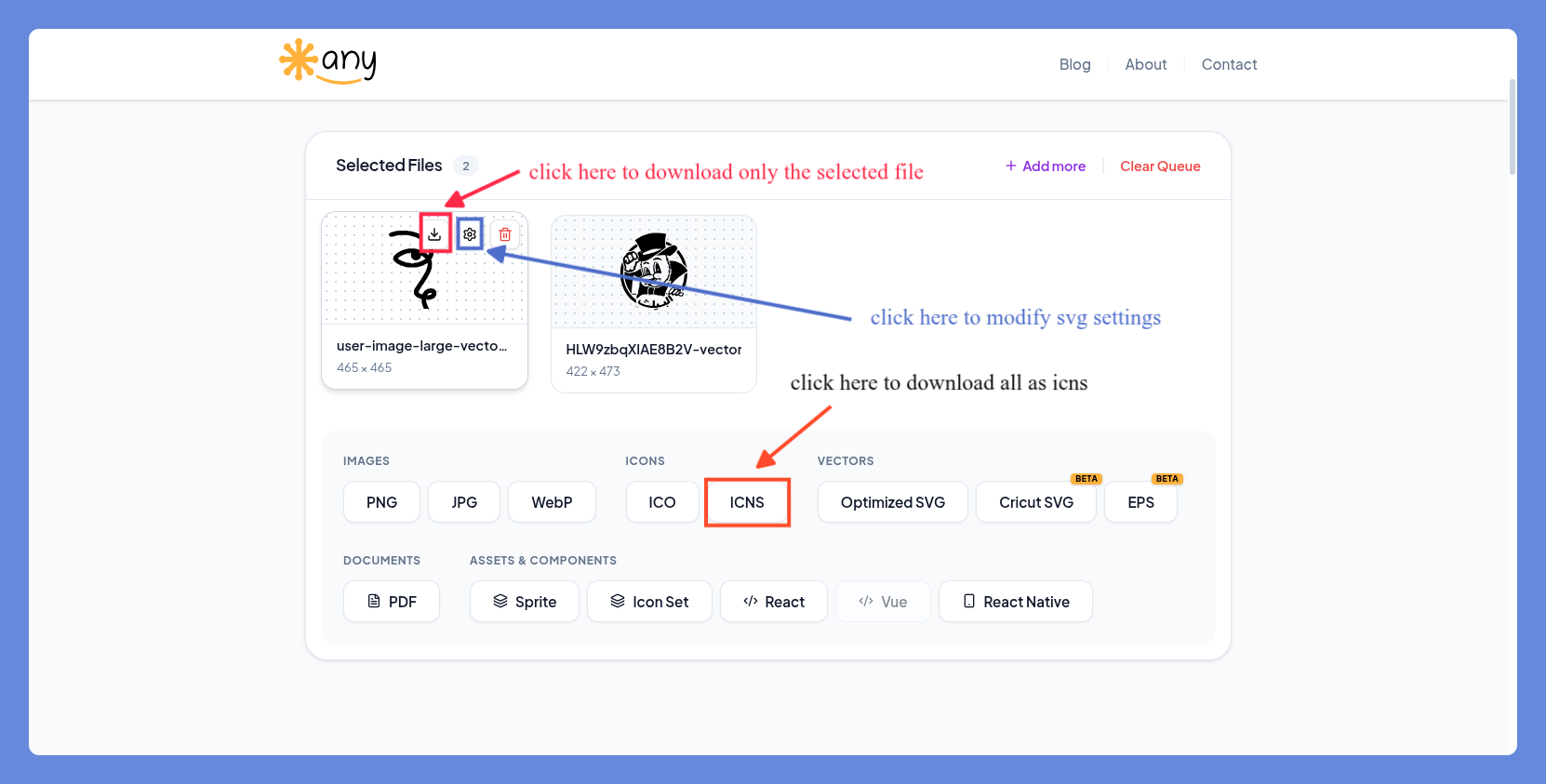
Because processing runs locally through HTML5 canvas and WebAssembly, files remain private and are not transmitted to external servers. The workflow operates identically across Linux, Windows, and macOS:
- Open the converter at svgtoany.com.
- Drop your SVG file into the upload zone or pick it from disk.
- Confirm the 1:1 aspect ratio and verify that background transparency is preserved.
- Select ICNS under the target format menu.
- Download the generated
.icnsfile.
This approach works well for quick conversions, asset testing, and systems where local command-line dependencies are not available.
Method 2: Native macOS Terminal with sips and iconutil
macOS includes two command-line utilities for icon management: sips and iconutil. The iconutil binary builds the ICNS package from a directory with the .iconset extension, though it requires PNG source files rather than raw SVG data.
To use this workflow, export your SVG to a square 1024×1024 PNG named icon_1024.png using Inkscape or your vector editor. Then run the following shell commands:
mkdir AppIcon.iconset

sips -z 16 16     icon_1024.png --out AppIcon.iconset/icon_16x16.png
sips -z 32 32     icon_1024.png --out AppIcon.iconset/icon_16x16@2x.png
sips -z 32 32     icon_1024.png --out AppIcon.iconset/icon_32x32.png
sips -z 64 64     icon_1024.png --out AppIcon.iconset/icon_32x32@2x.png
sips -z 128 128   icon_1024.png --out AppIcon.iconset/icon_128x128.png
sips -z 256 256   icon_1024.png --out AppIcon.iconset/icon_128x128@2x.png
sips -z 256 256   icon_1024.png --out AppIcon.iconset/icon_256x256.png
sips -z 512 512   icon_1024.png --out AppIcon.iconset/icon_256x256@2x.png
sips -z 512 512   icon_1024.png --out AppIcon.iconset/icon_512x512.png
cp icon_1024.png  AppIcon.iconset/icon_512x512@2x.png

iconutil -c icns AppIcon.iconset -o AppIcon.icns
rm -rf AppIcon.iconset
The resulting AppIcon.icns file contains Apple-compliant metadata and can be added directly to an Xcode project bundle or assigned to any macOS folder via Finder Get Info.
Method 3: Cross-Platform Conversion with Inkscape and icnsutils
On Linux, Windows Subsystem for Linux (WSL), and cloud build servers, macOS utilities like sips and iconutil are absent. Open-source vector rendering tools provide a dependable alternative.
Inkscape renders SVG vectors into PNGs with crisp anti-aliasing. You can rasterize directly to the required target sizes using a compact shell loop:
mkdir -p MyIcon.iconset
for size in 16 32 128 256 512; do
  inkscape app.svg -w $size -h $size -o MyIcon.iconset/icon_${size}x${size}.png
  retina=$((size * 2))
  inkscape app.svg -w $retina -h $retina -o MyIcon.iconset/icon_${size}x${size}@2x.png
done
Package the files on Linux using png2icns from the icnsutils package:
sudo apt-get install icnsutils
png2icns AppIcon.icns MyIcon.iconset/*.png
This generates the final ICNS file on Linux systems, fitting automated deployment pipelines without requiring macOS hardware.
Method 4: Automated CI/CD Pipelines with Node.js
Cross-platform frameworks like Electron and Tauri require platform-specific icon formats during packaging. Automating icon generation removes manual export steps across team repositories.
The electron-icon-builder npm package handles SVG inputs and produces both macOS ICNS and Windows ICO files in one step:
npm install --save-dev electron-icon-builder
npx electron-icon-builder --input=./assets/icon.svg --output=./build --flatten
Adding this command to your package.json build scripts ensures updated app binaries automatically receive fresh icons whenever the source SVG changes.
Method 5: Dedicated Desktop GUI Applications
For users who prefer visual inspection over terminal scripts, macOS desktop apps like Image2icon and Icns-creator offer an interactive interface.
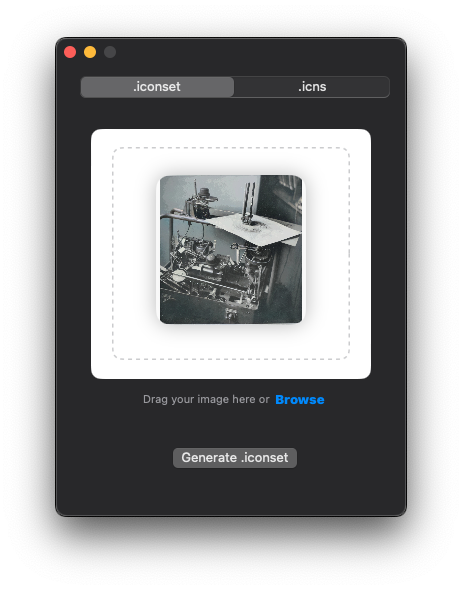
These applications let you drag in an SVG or high-resolution PNG, preview the icon across dark and light system themes, tweak edge insets, and export directly to .icns or Xcode .iconset folders with a single click.
Method Comparison
The table below summarizes each method by platform support, setup requirements, and primary strengths:
| Method | Platform | Setup | Best For |
|---|---|---|---|
| SvgToAny | Any (Browser) | None | Instant one-off conversion, privacy, no tooling needed |
| sips + iconutil | macOS | Built-in | Local Mac developer shell scripts and Xcode assets |
| Inkscape + icnsutils | Linux / WSL | CLI packages | Headless Linux CI/CD runners and Docker builds |
| electron-icon-builder | Cross-platform | npm package | Electron and Tauri multi-platform build pipelines |
| Desktop GUI Apps | macOS | App install | Visual asset preview and manual margin tuning |
Best Practices for Clean Vector Exports
- Square ViewBox: Ensure your SVG specifies an exact 1:1 aspect ratio (such as
viewBox="0 0 1024 1024") so shapes do not distort when mapped to square mipmaps. - Outer Margin: Leave roughly 10% empty padding around squircle shapes so the icon aligns naturally with system icons in the macOS Dock.
- Transparent Background: Keep the background clear unless an opaque fill is an intentional part of the artwork.