
If you’re looking to convert SVG to ICNS, svgtoany is the right place, as it stands out as one of the most intuitive and powerful online solutions available.
This advanced client-side converter is specifically built for developers and designers who need quick, high-quality results when turning vector graphics into native macOS icon files.
Whether you’re preparing app icons for Xcode, customizing folder icons, or building a complete icon set, svgtoany simplifies the entire SVG to ICNS conversion process. No software downloads, no complex Terminal commands—just upload, configure, and export.
Why Choose svgtoany for SVG to ICNS Conversion?
SVG files are perfect for creating scalable icons, but macOS requires the .icns format to deliver crisp visuals across all display densities.
svgtoany bridges this gap with ease by generating complete ICNS files that include multiple resolutions (16×16 up to 1024×1024) in one compact package.
Key Advantages of Using svgtoany:
- Lightning-fast client-side processing — Your files never leave your browser for maximum privacy and speed.
- Batch conversion support — Upload and convert multiple SVGs at once.
- Built-in customization — Fine-tune dimensions, aspect ratio, and background before exporting.
- Multiple export formats — Get ICNS alongside PNG, ICO, WebP, Optimized SVG, and more.
- User-friendly interface — Designed for both beginners and professionals.
The platform’s clean design makes converting SVG to ICNS feel effortless, even for complex projects.
Step-by-Step Guide: How to Convert SVG to ICNS on svgtoany
Step 1: Visit svgtoany and Upload Your Files
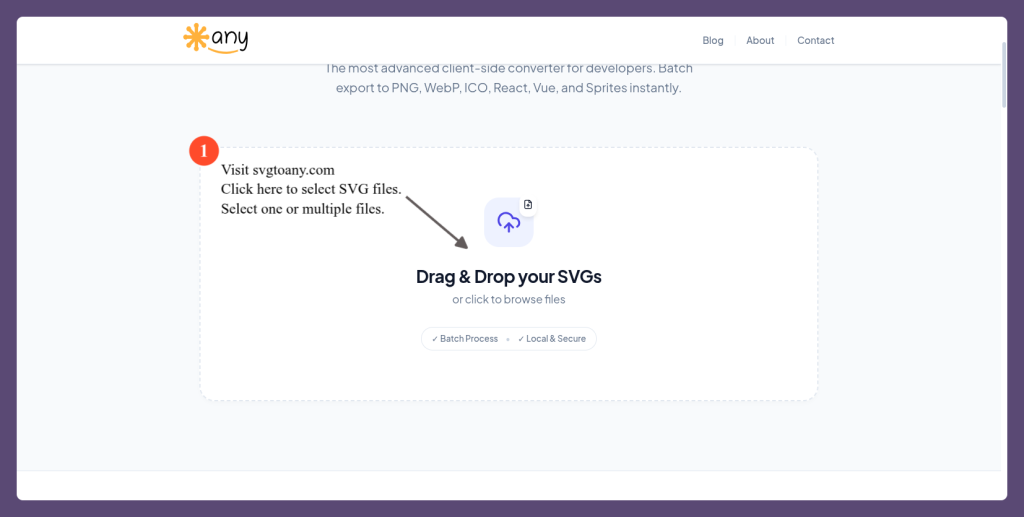
You can select one or multiple files, making it ideal for batch SVG to ICNS workflows.
The tool proudly highlights its capabilities: batch processing, local & secure handling, and support for developers with exports to PNG, WebP, ICO, React components, and more.
Step 2: Review and Manage Selected Files
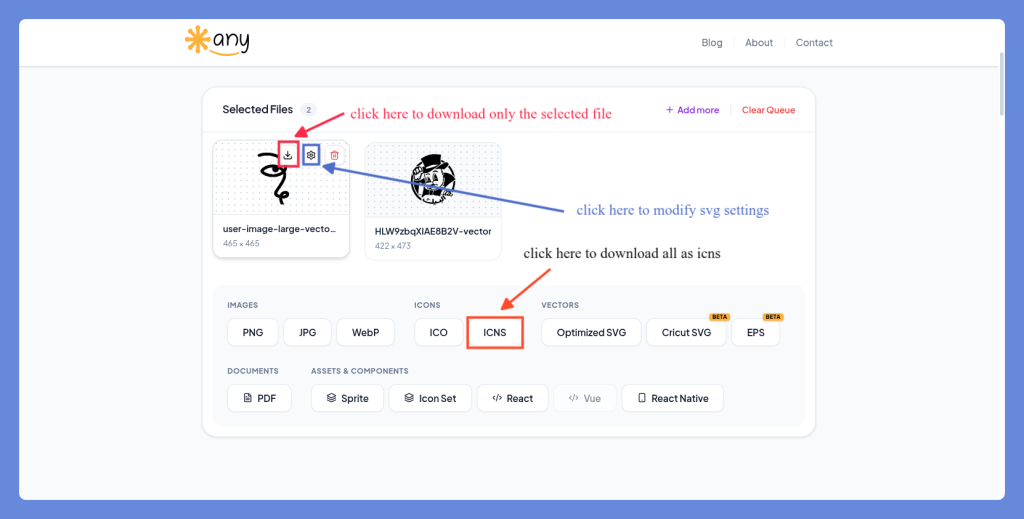
After uploading, your SVGs appear in the Selected Files section. Each thumbnail shows key details like dimensions (for example, 465 × 465 pixels). You’ll see handy options right away:
- Download individual files quickly.
- Access settings for customization.
- Clear the queue or add more files.
Step 3: Customize with File Settings
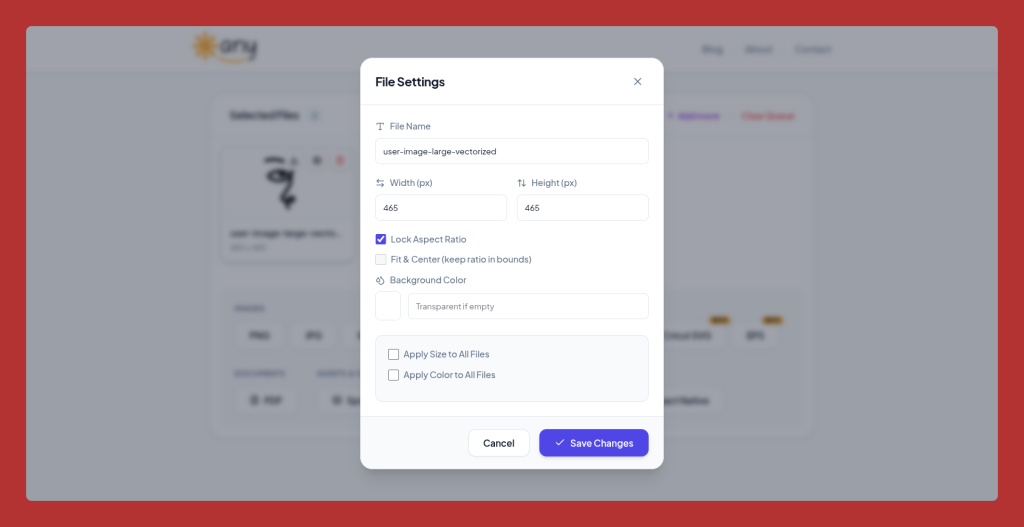
For professional results, click the gear icon to open the File Settings panel. Here you can:
- Rename the output file (e.g., “user-image-large-vectorized”).
- Adjust Width and Height with Lock Aspect Ratio enabled by default.
- Set a transparent or custom background color.
- Apply changes to all files in the batch.
- Enable “Fit & Center” options when needed.
This level of control ensures your SVG to ICNS conversions are pixel-perfect before final export.
Step 4: Select ICNS Format and Export
In the format selection area, simply click ICNS under the Icons section. The interface clearly highlights popular options like ICO, PNG, and Vectors. SVGtoAny.com automatically generates a fully compatible macOS ICNS file containing all necessary icon sizes and states.
Download your ready-to-use ICNS file instantly — perfect for dragging into Xcode or assigning to apps and folders.
Advanced Features That Make svgtoany Your Best Option
- Precise Dimension Control: Maintain quality by locking aspect ratios and setting exact pixel dimensions.
- Transparent Background Support: Essential for clean app icons.
- Batch Efficiency: Process dozens of icons in one go and apply uniform settings.
- Developer-Friendly Exports: Beyond ICNS, export React/Vue components, sprites, or icon sets.
- Secure & Private: Everything runs locally in your browser.
These features make svgtoany the go-to tool for online SVG to ICNS conversion in 2026.
Best Practices for SVG to ICNS on svgtoany
- Prepare High-Quality SVGs — Use clean vectors with square artboards (ideally 512px or larger) and simplified paths.
- Leverage File Settings — Always check dimensions and enable Lock Aspect Ratio for consistent results.
- Test Your ICNS — After downloading, preview the file on macOS by assigning it to an application via Get Info.
- Combine with Other Formats — Export ICO simultaneously for cross-platform Windows support.
- Optimize Workflow — Use the “Apply to All Files” options to maintain consistency across large icon libraries.
Who Should Use SVGtoAny.com?
- macOS developers building apps in Xcode or SwiftUI.
- UI/UX designers creating custom system icons.
- Indie hackers and freelancers needing fast asset generation.
- Teams managing large design systems.
The platform’s focus on batch SVG to ICNS conversion makes it invaluable for professional workflows.
Why SVGtoAny.com Beats Traditional Methods
Forget installing heavy design software or wrestling with command-line tools like iconutil.
svgtoany offers a modern, browser-based alternative that’s faster, more visual, and accessible from any device. Its intuitive interface, shown clearly in the screenshots above, reduces the learning curve while delivering production-ready results.
Start Converting SVG to ICNS Today
Ready to transform your vector designs into perfect macOS icons? Head over to svgtoany and experience the simplest SVG to ICNS converter online. With powerful features like easy file management, detailed settings, and one-click ICNS exports, you’ll wonder how you ever managed without it.
Whether you need a single icon or an entire set, svgtoany delivers speed, quality, and convenience every time. Upload your SVGs now and create stunning macOS-ready icons in minutes.